
Deep Link Tester: Test Any App Link Online: iOS, Android & Social Preview
Test your link preview locally before sharing it on LinkedIn, WhatsApp, or Twitter — and run a deep linking setup checklist before launch. Free tool validates iOS Universal Links, Android App Links, Open Graph tags, and social preview cards in under 30 seconds.

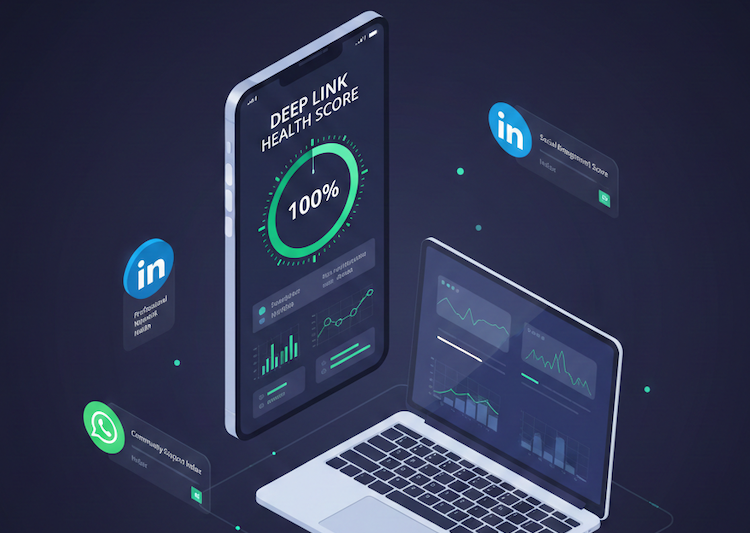
Your app link looks different on every platform. Here's how to test it on LinkedIn, WhatsApp, Twitter, and more, for free.
You're Sharing App Links Blind (And It's Costing You Clicks)
Every time you share an app link on LinkedIn, WhatsApp, Slack, or Twitter, the platform generates a URL preview — that little card with an image, title, and description that appears below your post.
Here's what most teams don't realize: your link preview looks different on every platform , and you probably have no idea what your audience actually sees.
Click to Test your Links for Free
- On LinkedIn , a broken link preview means your post gets scrolled past — and LinkedIn's algorithm penalizes low-engagement posts by showing them to fewer people.
- On WhatsApp , a missing preview image means your shared link looks like spam.
- On Twitter/X , a malformed Twitter Card means your link blends into the noise.
The result? Fewer clicks, lower conversions, and wasted marketing spend : all because nobody checked the link preview before hitting "Post."
What Is a Deep Link Tester?
A deep link tester is a tool that analyzes a URL and tells you exactly how it will behave across different devices and platforms. Unlike a basic link checker that only confirms a URL returns a 200 status code, a deep link tester validates the entire chain, from domain health to app configuration to social sharing metadata.
What a deep link tester checks:
| Check | Why It Matters |
|---|---|
| Domain health (DNS, SSL, redirects) | Broken SSL or redirect chains prevent links from opening in apps |
| iOS Universal Links (AASA file) | Missing or misconfigured AASA = links open in browser, not your app |
| Android App Links (assetlinks.json) | Invalid assetlinks = Android treats your link as a web-only URL |
| Link preview metadata (Open Graph, Twitter Cards) | Controls what users see when you share your link on social media |
| URL preview rendering | How the preview card appears on LinkedIn, Twitter, Facebook, WhatsApp |
A proper deep link tester combines all of these into a single health score, so you know exactly where your link stands before you share it with the world.
How to Preview a Link Before Sharing It
Before we get into platform-specific details, here's the quick version. If you just want to know how your link will look when you paste it into LinkedIn, WhatsApp, or Twitter — follow these four steps:
- Grab your URL — copy the exact link you plan to share (including any UTM parameters or tracking codes).
- Paste it into a link preview checker — use ChottuLink's Deep Link Tester or any similar tool. This fetches the page the same way social platforms do.
- Review the preview cards — the tool shows you what your link will look like on LinkedIn, Twitter, WhatsApp, and other platforms. Check the image, title, and description on each.
- Fix and re-test — if something looks off (wrong image, truncated title, missing description), update your Open Graph meta tags in the page's HTML, then test again. Most fixes are a one-line change in your
<head>tag.
That's it. The whole process takes under a minute, and it saves you from sharing a link that looks broken to everyone except you.
Why this matters: Platforms cache previews. If you share a broken preview once, it can stay broken for days — even after you fix the underlying tags. Testing before you share is the only way to get it right the first time.
How to Test Your Link Preview Locally Before Sharing
Before you share a link on LinkedIn, WhatsApp, or Twitter, you can test exactly what the preview card will look like, without posting anything publicly. This lets you catch a broken image, a truncated title, or a missing description before your audience sees it. There are four ways to test your link preview locally, ranging from a one-click tool to a quick source check you can do in any browser.
Method 1: Use a Link Preview Checker (Fastest)
Paste your URL into ChottuLink's Deep Link Tester. It fetches your page the same way social platforms do and shows you the rendered preview card for LinkedIn, Twitter, WhatsApp, and Facebook, all at once, without you posting anything. If the image is wrong, the title is cut off, or the description is missing, you'll see it here first.
Method 2: Use Each Platform's Official Debugger
Each major platform has a free tool that shows you the exact preview it will generate:
| Platform | Tool | What It Does |
|---|---|---|
| Post Inspector | Previews your card and lets you force a cache refresh | |
| Sharing Debugger | Shows fetched OG tags and flags errors | |
| Twitter/X | Card Validator | Validates Twitter Card tags and renders the card |
These tools are the most authoritative source of truth for each platform, they show you the preview exactly as the platform's crawler sees it. Use them after fixing any issues to confirm the change took effect.
Method 3: Test in a Private Message to Yourself
Paste your link into a Slack DM to yourself, a Discord DM to yourself, or a WhatsApp message to yourself. These messaging apps render the preview immediately and privately, no one else sees it. What you see in the DM is exactly what your contacts will see when you share the link. This is the fastest real-world check, especially for WhatsApp, which has no official debugger tool.
Method 4: Check the Page Source (30-Second Sanity Check)
In any browser, open view-source:https://yourdomain.com/your-page and search (Ctrl+F / Cmd+F) for og:title. If you can see it in the raw HTML, social platforms can read it. If it's not there (or only appears after the page finishes loading) your preview tags are being injected by JavaScript, which most social crawlers ignore entirely. This is one of the most common causes of blank or broken previews on JavaScript-heavy sites.
The rule of thumb: Always test your link preview locally before the first share. Platforms cache previews aggressively, LinkedIn in particular can show a broken card for days after you fix the underlying issue. Testing beforehand is the only reliable way to get it right the first time.
Why Link Preview Matters More Than You Think
What Makes a Link Preview "Rich"
Not all link previews are equal. When people talk about a "rich link preview," they mean the full card — the one with a large image, a headline, a description, and a visible domain. Compare that to a bare URL, which shows up as plain text with nothing to click on visually.
Here's what separates them:
| Element | Rich Preview | Bare URL |
|---|---|---|
| Image | Large, branded (1200×630px) | None |
| Title | Clear, benefit-driven | Raw URL string |
| Description | Concise summary | None |
| Domain | Recognized brand domain | Often long and cluttered |
| CTR Impact | High — draws the eye | Low — blends into the feed |
A rich preview gives people a reason to click. A bare URL gives them a reason to scroll past.
The Data Behind Link Previews
Links with rich previews — a compelling image, a clear title, and a concise description — dramatically outperform bare URLs:
- Buffer research found that posts with images receive 150% more engagement on Twitter compared to text-only posts.
- Research shows that tweets with images get 150% more retweets and are 34% more likely to be retweeted than text-only tweets (source).
- According to LinkedIn's engineering blog, posts with rich media previews see significantly higher click-through rates than posts with plain-text URLs.
In short: your link preview is the ad for your link. If it's broken, missing, or generic, you're essentially running an ad with no creative.
What a Good vs Bad Link Preview Looks Like
Good link preview (high CTR):
- Custom branded image (1200×630px)
- Clear, benefit-driven title (under 60 characters)
- Compelling description that creates curiosity (under 160 characters)
- Recognized domain name (builds trust)
Bad link preview (scroll-past):
- No image (or a broken image placeholder)
- Generic title auto-pulled from the page
- Missing or truncated description
- Unfamiliar or suspicious-looking domain
How to Test Your Link Preview Image
Your preview image does most of the heavy lifting. It's the first thing people notice in a social feed, and it's the most common thing that breaks. Here's what you need to get right:
Image Requirements by Platform
| Platform | Recommended Size | Min Size | Format | Max File Size |
|---|---|---|---|---|
| 1200×627px | 200×200px | JPG, PNG | 5MB | |
| Twitter/X | 1200×628px | 144×144px (summary) | JPG, PNG, GIF, WEBP | 5MB |
| 1200×630px | 200×200px | JPG, PNG | 8MB | |
| 1200×630px | 300×200px | JPG, PNG | — | |
| Slack | 1200×630px | — | JPG, PNG | — |
| Discord | 1200×630px | — | JPG, PNG, GIF | 8MB |
Common Image Problems (and Fixes)
- Image doesn't show up at all — Check that the
og:imageURL actually loads in a browser. A surprising number of broken previews come down to a 404 on the image URL. - Image looks blurry or pixelated — You're probably serving something smaller than 1200×630. Upload a higher-resolution version.
- Image gets cropped weirdly — Different platforms crop differently. Keep your key content (text, logo, faces) in the center — not along the edges.
- SVG images won't render — Most social platforms don't support SVG for preview images. Convert to JPG or PNG.
- Image takes too long to load — If your image server is slow, WhatsApp in particular will give up and show no preview. Compress images and use a CDN.
The ChottuLink Deep Link Tester checks your og:image tag, validates the URL, and flags dimension or format issues automatically — so you don't have to open each platform manually to see if the image works.
How to Check Your LinkedIn Link Preview
LinkedIn is where B2B marketers, SaaS founders, and app growth teams share product updates, launch announcements, and campaign links. A broken LinkedIn link preview can tank even the best content.
Why LinkedIn Link Previews Break
- Missing Open Graph tags — LinkedIn pulls
og:title,og:description, andog:imagefrom your page's HTML. If these tags are missing, LinkedIn guesses — and it usually guesses wrong. - Cached previews — LinkedIn aggressively caches Open Graph metadata. If you fix a broken image or change a title, LinkedIn will keep showing the old preview until you manually clear the cache using LinkedIn's Post Inspector.
- Image size issues — LinkedIn recommends images at 1200×627px. Images smaller than 200×200px won't render in the preview at all.
- Redirect chains — If your URL redirects multiple times before landing on the final page, LinkedIn's crawler may fail to pick up the OG tags entirely.
How to Test Your LinkedIn Link Preview
- Paste your URL into ChottuLink's Deep Link Tester
- Check the Social Sharing section — the tool validates all Open Graph tags (
og:title,og:description,og:image) and flags any that are missing or incorrectly configured - Verify image dimensions — the tool checks if your preview image meets platform requirements
- Fix the issues — update your OG meta tags based on the detailed report
- Clear LinkedIn's cache — use LinkedIn Post Inspector to force LinkedIn to re-fetch the corrected metadata
Pro tip: Always test your link preview before posting on LinkedIn. A single post with a broken preview gets buried by the algorithm, and you can't edit the preview after publishing.
How to Check Your URL Preview on Other Platforms
Twitter/X
Twitter uses Twitter Card tags to render link previews. The most important tags are:
<meta name="twitter:card" content="summary_large_image">
<meta name="twitter:title" content="Your Title Here">
<meta name="twitter:description" content="Your description here">
<meta name="twitter:image" content="https://yourdomain.com/image.jpg">
If your Twitter Card tags are missing, Twitter falls back to Open Graph tags — but the rendering may not be optimal. Use the deep link tester to validate both sets of tags in one scan.
WhatsApp & Telegram
Both WhatsApp and Telegram pull from Open Graph tags to render link previews. But WhatsApp has a few quirks that trip people up more than any other platform.
Open Graph Tags WhatsApp Requires
At minimum, WhatsApp looks for these four tags in your page's <head>:
<meta property="og:title" content="Your Page Title">
<meta property="og:description" content="A short description of the page">
<meta property="og:image" content="https://yourdomain.com/image.jpg">
<meta property="og:url" content="https://yourdomain.com/your-page">
There's also og:site_name — this one's easy to forget, but it controls the small text above the title in WhatsApp previews. If you leave it out, WhatsApp shows your raw domain (which is fine for well-known brands, but can look off for subdomains or longer URLs).
<meta property="og:site_name" content="YourBrand">
WhatsApp-Specific Image Rules
WhatsApp is stricter about og:image than most platforms:
- Minimum size: 300×200 pixels. Anything smaller and WhatsApp may skip the image entirely.
- Format: JPG or PNG only. SVGs and WebP images won't render.
- Load time matters: If your image server takes more than a few seconds to respond, WhatsApp gives up and shows a preview with no image. Use a CDN if possible.
- HTTPS required: WhatsApp won't load images served over plain HTTP.
WhatsApp Preview Caching
Here's the frustrating part: WhatsApp caches link previews aggressively, and there's no official "clear cache" tool like LinkedIn or Facebook offer. If you share a link with a broken preview, fixing the tags won't immediately fix the preview in existing chats.
What you can do:
- Append a query parameter (e.g.,
?v=2) to the URL to force WhatsApp to treat it as a new link and re-fetch the metadata. - Wait it out — WhatsApp's cache typically refreshes within a few days, though there's no guaranteed timeline.
- Test before sharing — this is the real answer. Catch the issue before it reaches your audience.
Facebook uses its own Sharing Debugger to crawl and cache Open Graph data. Like LinkedIn, Facebook caches previews aggressively, so you'll need to "scrape again" after making changes.
Slack
Slack renders rich previews from both Open Graph and Twitter Card metadata. It's actually one of the easier platforms to test on — just paste a link in a DM to yourself and you'll see the preview immediately. If it looks wrong in Slack, it's almost certainly wrong elsewhere too.
Discord
Discord works similarly to Slack (it reads Open Graph and Twitter Card tags) but has a few notable differences:
- Embed color: Discord supports a
<meta name="theme-color" content="#HEX">tag that adds a colored sidebar to your link embed. It's a small detail, but it helps branded links stand out in busy channels. - Character limits: Discord truncates titles at around 256 characters and descriptions at roughly 2048 characters. Not usually a problem — unless your
og:titlepulls from a very long page title. - Image rendering: Discord renders
og:imageas a large embedded image below the text. If the image is too wide (over ~4096px), it may not render at all. - No preview on mobile sometimes: Discord's mobile app occasionally skips the preview if the metadata is inside JavaScript-rendered content. Make sure your OG tags are in the static HTML
<head>, not injected by client-side code.
Quick test: Paste your link into a Discord DM. If the embed renders with the right image, title, and description — you're good. If it doesn't, check your OG tags and try appending a ?cache-bust=1 to force Discord to re-fetch.How to Share App Links That Actually Convert
If you're sharing mobile app links — links that should open a specific screen inside your iOS or Android app — the stakes are even higher. A broken app link doesn't just look bad in the preview; it drops users on your website, the wrong app store, or a dead end.
The App Link Sharing Checklist
Before sharing any app link on social media, email, or messaging platforms, run through this:
* [ ] **Test with a deep link tester** — verify domain health, AASA file, assetlinks.json, and social metadata using [ChottuLink's Free Deep Link Tester](https://chottulink.com/tools/deep-link-tester/index.html)
- [ ] Check the link preview — does the preview card show the right image, title, and description?
- [ ] Test on a real device — open the link on both iOS and Android to confirm it opens the app (not the browser)
- [ ] Test the "not installed" flow — what happens when a user without the app clicks your link? Do they land on the correct app store?
- [ ] Verify deferred deep linking — after installing from the link, does the user land on the right screen?
- [ ] Preview on LinkedIn, WhatsApp, and Twitter — each platform renders previews differently; test all channels you plan to share on
Why Custom Domains Matter for App Link Sharing
When you share app links using a vendor's default domain (like yourapp.onelink.me or yourapp.page.link), users see an unfamiliar URL in the link preview. This lowers trust and click-through rates.
Using a custom branded domain (like link.yourapp.com) means:
- Users recognize and trust the domain
- Higher click-through rates on social platforms
- Your brand is reinforced with every shared link
- You're not locked into a vendor — if you switch deep linking providers, your links still work
ChottuLink supports custom branded domains on all paid plans , so your shared app links always show your brand, not a third-party domain.
Test Your Deep Links for Free
ChottuLink's Deep Link Tester is a free tool that gives you a complete health report on any URL — no signup, no email, just paste and test.
What you get:
0–100 health score — instantly see how well-configured your link is
Domain health check — DNS resolution, SSL certificate, redirect chains
iOS Universal Links validation — AASA file, app ID, URL pattern matching
Android App Links validation — assetlinks.json, package name, certificate fingerprint
Link preview validation — Open Graph tags, Twitter Card tags, image dimensions
URL preview check — see exactly what LinkedIn, Twitter, and other platforms will display
Link behavior preview — what happens on iOS vs Android vs desktop when the app is installed or not
How to use the deep link tester:
- Go to chottulink.com/tools/deep-link-tester
- Paste any URL
- Click "Test Link"
- Review the detailed health report
- Fix the flagged issues
- Test again until you hit 100%
It takes less than 30 seconds. And it can save you from sharing a broken link that costs you an entire campaign's worth of clicks.
Common Link Preview Mistakes and How to Fix Them
| Mistake | Impact | Fix |
|---|---|---|
Missing og:image tag |
No preview image on LinkedIn, Facebook, WhatsApp | Add a <meta property="og:image"> tag pointing to a 1200×630px image |
| Image too small | Preview renders without image or with a tiny thumbnail | Use images at least 1200×630px for social platforms |
Missing og:title |
Platform auto-generates a title from the page (often wrong) | Add an explicit <meta property="og:title"> tag |
| No Twitter Card tags | Twitter shows a plain link instead of a rich card | Add twitter:card, twitter:title, twitter:description, twitter:image |
| Redirect chains on the URL | Crawlers fail to fetch OG tags; app links break | Serve content directly, minimize redirects |
| Using root domain for app links | Universal Links fail when user is already on the same domain in Safari | Use a dedicated subdomain like link.yourapp.com |
| Not clearing cache after fixes | Platform keeps showing old, broken preview | Use LinkedIn Post Inspector or Facebook Debugger to force re-fetch |
Beyond Preview: What Else the Deep Link Tester Catches
A broken link preview is the most visible problem — but it's often a symptom of deeper configuration issues. The deep link tester goes beyond surface-level checks to catch:
Configuration Issues That Break App Links
- Missing AASA file → iOS Universal Links won't fire; users stay in the browser
- Invalid assetlinks.json → Android won't open the app; users land on the web
- Expired SSL certificates → Both iOS and Android reject the link entirely
- Incorrect App IDs or package names → The link opens, but in the wrong app (or no app)
Competitor Deep Link Detection
If you're using Firebase Dynamic Links, Branch, AppsFlyer, or Airbridge, the deep link tester identifies the provider and flags potential issues specific to that platform — including deprecation warnings for Firebase.
Link Behavior Simulation
The tool shows you what happens in three scenarios:
- App installed on iOS — does the link open the app or the browser?
- App installed on Android — same check for Android
- App not installed — does the link redirect to the right app store?
Take Action: Test, Fix, Share
The formula is simple:
- Test your link — paste any URL and get a health score with detailed diagnostics
- Fix what's broken — the report tells you exactly what's wrong and how to fix it
- Verify the link preview — check that your Open Graph and Twitter Card tags render correctly on LinkedIn, Twitter, WhatsApp, and Facebook
- Share with confidence — knowing your link preview looks right and your app link actually works
Every link you share is a first impression. Make it count.
Already Managing Deep Links at Scale?
ChottuLink handles all the complexity — iOS, Android, web fallbacks, deferred deep linking, custom branded domains, and built-in analytics — so you can focus on growth instead of debugging broken links.
- Free tool: Deep Link Tester
- Free tool: Social Preview Checker
- Free tier: Up to 25K MAU, unlimited links
Further Reading
- Link Preview Checker: See Exactly How Your URL Looks Before You Share It
- Why You Should Test Deep Links Before Sharing
- How Rich Social Link Previews Boost CTR by 150%
- Open Graph Protocol Specification
- LinkedIn Post Inspector
- Twitter Cards Documentation
- Facebook Sharing Debugger
Stop guessing. Start testing. Your link preview is your first impression — make sure it's a good one.
Frequently Asked Questions
What does a deep link tester check?
A deep link tester validates the full chain: domain health (DNS, SSL, redirects), iOS Universal Links (AASA file), Android App Links (assetlinks.json), Open Graph and Twitter Card metadata, and link preview rendering on LinkedIn, Twitter, Facebook, and WhatsApp — all in one health score.
Why does my link preview look different on LinkedIn vs WhatsApp?
Each platform has its own rendering rules and image size requirements. LinkedIn uses Open Graph tags with 1200×627px images. WhatsApp requires at least 300×200px and is very strict about image load speed. Twitter prefers its own Twitter Card tags. A deep link tester shows you the preview on all platforms at once.
How do I fix a broken link preview before sharing?
Add or correct the og:title, og:description, og:image, and og:url meta tags in your page's HTML head. Ensure the og:image points to a 1200×630px JPG or PNG hosted on a fast CDN. After fixing, clear the platform cache (LinkedIn Post Inspector, Facebook Sharing Debugger) and test again.
Is the ChottuLink Deep Link Tester free?
Yes. The ChottuLink Deep Link Tester is completely free — no signup, no login. Paste any URL and get a full health score with domain, iOS, Android, and social preview diagnostics in under 30 seconds.
Why should I use a custom branded domain for app links?
Default vendor domains (like yourapp.onelink.me or page.link) are unfamiliar to users, reducing trust and click-through rates. A branded domain (like link.yourapp.com) shows your brand in every shared link preview, improving CTR and making you independent from your deep linking vendor.
What causes iOS or Android app links to open in the browser instead of the app?
On iOS, a missing or misconfigured apple-app-site-association (AASA) file means Universal Links fail and the link opens in Safari. On Android, an invalid assetlinks.json causes the same fallback to the browser. The deep link tester validates both files and flags the exact issue.
How do I test my link preview locally before sharing?
You can test your link preview locally before sharing it in four ways: paste the URL into a link preview checker tool that renders the card without posting anything; use each platform's official debugger (LinkedIn Post Inspector, Facebook Sharing Debugger, Twitter Card Validator); paste the link into a Slack, Discord, or WhatsApp DM to yourself to see the live preview privately; or open view-source:yourdomain.com/your-page in a browser and search for og:title — if it's not in the raw HTML, social crawlers won't see it.
What should I check before launching a deep link?
Before launching a deep link, verify six areas: domain health (valid SSL, no long redirect chains, a subdomain for app links); iOS Universal Links (AASA file at /.well-known/apple-app-site-association, correct app ID format, URL patterns covering your paths); Android App Links (assetlinks.json with your release keystore SHA-256 fingerprint, autoVerify enabled); social preview (og:title, og:description, og:image at 1200×630px, all present in static HTML); behavior on real devices (correct in-app screen when installed, correct app store when not); and deferred deep linking (correct screen on first launch after a fresh install via the link).