
Apple-App-Site-Association: Setup, Hosting and Debugging
The apple-app-site-association file decides which URLs open in your iOS app. What goes in it, where it must live on every host, what Apple's CDN serves in practice, and how to debug the link that opens Safari.
The apple-app-site-association file (AASA) is a JSON document that tells iOS which URLs on a domain your app is allowed to open. It has no file extension. It is served over HTTPS at https://<domain>/.well-known/apple-app-site-association on every host named in your app's Associated Domains entitlement, and since iOS 14 the system fetches it through an Apple-run CDN rather than from your server. Get the file, the path and the entitlement right and Universal Links work. Get any one of them wrong and the link opens Safari, with nothing user-facing to tell you which one you broke.
What follows is the whole setup in one place, including the parts of Apple's documentation that have been dropped from the current pages.
What goes in the file
A complete file for a shopping app, using the current format:
{
  "applinks": {
    "details": [
      {
        "appIDs": ["ABCDE12345.com.example.shop"],
        "components": [
          { "/": "/help/*", "exclude": true,
            "comment": "Help center always stays on the web" },

          { "/": "/product/*", "?": { "web": "1" }, "exclude": true,
            "comment": "Product links carrying ?web=1 stay on the web" },

          { "/": "/product/*",
            "comment": "Every other product page opens in the app" },

          { "/": "/orders", "#": "track",
            "comment": "Order tracking, only with the #track fragment" },

          { "/": "/s/*", "caseSensitive": false,
            "comment": "Short links, matched regardless of capitalization" }
        ]
      }
    ]
  },
  "webcredentials": { "apps": ["ABCDE12345.com.example.shop"] },
  "appclips": { "apps": ["ABCDE12345.com.example.shop.Clip"] }
}
appIDs is an array because more than one app can claim the same domain. Each value is your App ID prefix, which is usually your Team ID, then a dot, then the bundle identifier. Apple specifies the format as <Application Identifier Prefix>.<Bundle Identifier> in the associated domains documentation. A value that is only the bundle identifier, with the prefix left off, will not match the app, and Xcode does not warn about it.
The components array is where the work happens. Each entry is a dictionary of matcher keys, and every key you specify has to match for the entry to match:
| Key | Matches | Default |
|---|---|---|
/ |
The URL path component | * (everything) |
? |
The query component, as a pattern or as a dictionary of query-item names and value patterns | * (everything) |
# |
The fragment component | * (everything) |
exclude |
Stops matching and keeps the URL out of the app when the entry matches | false |
comment |
Text the system ignores | — |
caseSensitive |
Whether matching is case-sensitive | true |
percentEncoded |
Whether URLs are treated as percent-encoded | true |
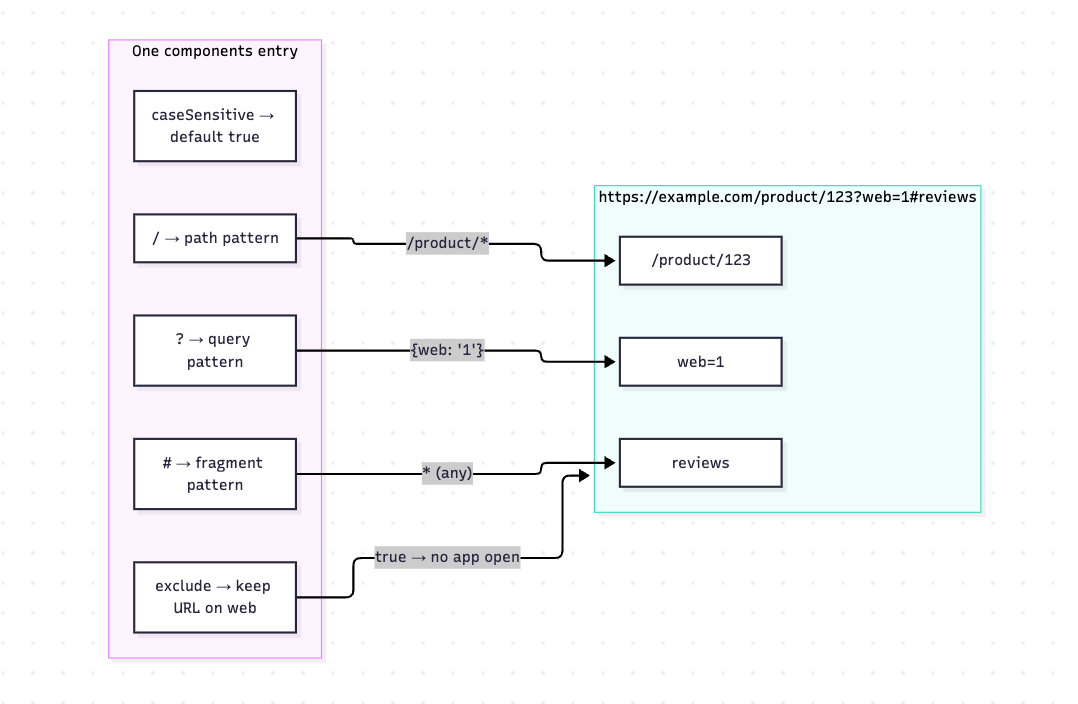
Three wildcards are available: * matches zero or more characters (greedily), ? matches exactly one character, and ?* matches one or more. The percentEncoded default of true matters if your URLs arrive already encoded, or if your paths contain non-ASCII segments.
Apple's own worked example in the components reference shows how strict the "all components must match" rule is. This entry:
{ "/": "abc", "?": "def", "#": "*" }
matches https://www.example.com/abc?def. It does not match https://www.example.com/abc, and it does not match https://www.example.com?def. The # key matches everything, so the fragment is ignored either way.
Order decides the outcome. The first matching entry wins, which is why the ?web=1 exclusion sits above the general /product/* rule in the example above: reverse those two and every product link opens the app. And caseSensitive defaults to true, so a component of /Product/* will not match a link to /product/123. If your URLs are user-generated or your CMS is inconsistent about case, set "caseSensitive": false rather than enumerating variants.
The same file can carry the other associated-domains services, and you set defaults for the whole domain once rather than repeating them per entry:
{
  "applinks": {
    "substitutionVariables": { "store": ["us", "ca", "uk"] },
    "details": [
      {
        "appIDs": ["ABCDE12345.com.example.shop"],
        "defaults": { "caseSensitive": false },
        "components": [ { "/": "/$(store)/product/*" } ]
      }
    ]
  }
}
defaults applies to every pattern in the file and can take any of the keys in the table above, so one line replaces a caseSensitive flag on every entry. substitutionVariables names a set of strings once, and Apple also ships predefined ones, so "/$(lang)_$(region)/*" covers /en_US/ and /fr_CA/ without listing each combination. Avoid names Apple already defines: $(lang), $(region), $(alpha), $(upper), $(lower), $(alnum), $(digit) and $(xdigit).
JSON here is strict: no comments outside comment values, and no trailing commas.
The legacy format, and the difference that changes behavior
Apple's older format used a single appID string and a paths array, and it is still valid. The archived App Search Programming Guide documents it in full:
{
  "applinks": {
    "apps": [],
    "details": [
      {
        "appID": "ABCDE12345.com.example.shop",
        "paths": ["/product/*", "NOT /help/*"]
      }
    ]
  }
}
Legacy paths |
Current components |
|---|---|
appID (a string) |
appIDs (an array) |
apps: [] must be present and empty |
Not used |
"NOT /path/*" for exclusions |
{ "/": "/path/*", "exclude": true } |
* and ? wildcards |
Same, plus ?* for one-or-more |
| Evaluated in order, first match wins | Same |
| Path only | Path, query and fragment |
| Case-sensitive | Case-sensitive by default, switchable |
That last difference is the one that changes behavior, and it answers the "paths vs components" question. In the legacy format only the path component is compared. Apple's guide states it directly: "only the path component of the URL is used for comparison. Other components, such as the query string or fragment identifier, are ignored."
So a legacy paths entry of /product/* claims /product/123?utm_source=email#reviews just as readily as /product/123. It is more permissive than it looks, and it cannot express "this URL should stay on the web" for a password-reset link carrying a one-time token, or an email link you deliberately serve with ?web=1. The exclude rule in the example file at the top of this article has no equivalent in paths.
Apple's instruction is to avoid mixing the two formats, because "doing so may result in unexpected behavior for universal links". If your app already shipped with the legacy format and you need query-aware rules, convert the whole file to components in one change, and test it against the oldest OS version you still support.
The archived guide is also where the size limit comes from: for iOS 9.3.1 and later the uncompressed file must be no more than 128 KB. The current Apple pages we checked do not state a limit.
Where the file has to live
https://<fully qualified domain>/.well-known/apple-app-site-association, served over HTTPS with a valid certificate, with no redirects, and with no file extension. Apple's current documentation is explicit that you "must host the file using https:// with a valid certificate and with no redirects".
The file and the entitlement have to line up host by host, and the wildcard does not behave the way most people assume. From TN3155:
| Entitlement entry | Served by | Not served by |
|---|---|---|
applinks:example.com |
https://example.com/.well-known/apple-app-site-association |
— |
applinks:*.example.com |
The same root file above | — |
applinks:www.example.com |
https://www.example.com/.well-known/apple-app-site-association |
The root file does not cover this |
applinks:foo.example.com |
https://foo.example.com/.well-known/apple-app-site-association |
The root file does not cover this |
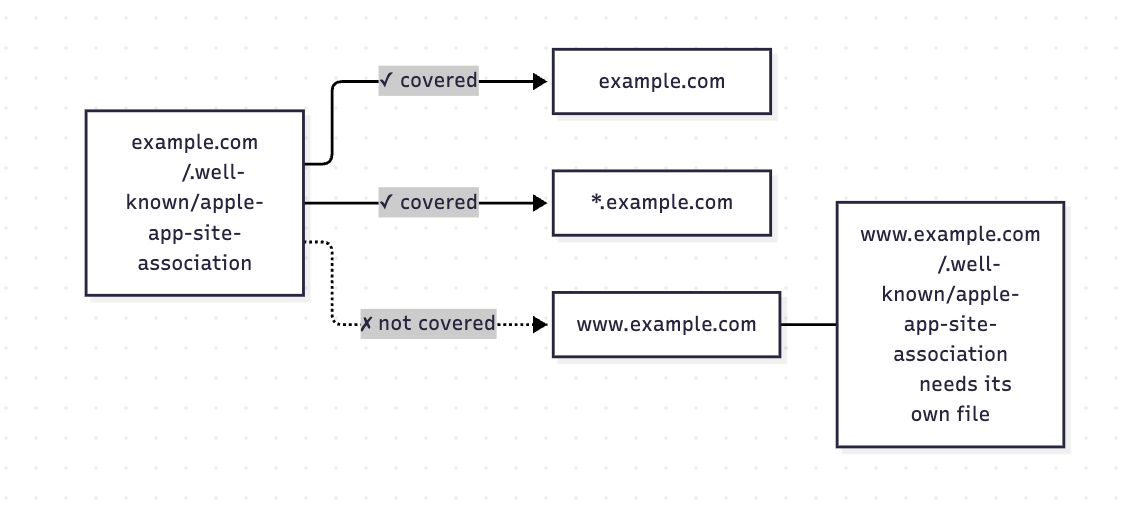
The root file covers the root domain and the wildcard. It does not cover a named subdomain, which is the opposite of what "the root covers everything under it" suggests. If your entitlement lists applinks:www.example.com and you host one file on the apex, that entry will not be served.
"No redirects" is aimed at the case that catches most people: the apex-to-www redirect that many hosts apply by default. Host a copy of the file on both hosts rather than letting one redirect to the other. In our checks on 2026-10-11, Apple's CDN followed apple.com's redirect to www.apple.com and served the file anyway, listing both URLs in its fetch header. That is one host on one day, and Apple's documentation still says redirects are not supported.
A 403 or a 404 does not always mean the file is missing. It can mean your server is refusing some visitors. Apple's guidance is that the path must be reachable from every IP address and that the server must accept all user agents, which you can test with a made-up one:
curl -A "MyAgent-Bot/*" https://example.com/.well-known/apple-app-site-association
What the live infrastructure serves
Since macOS 11 and iOS 14, apps do not request the file from your server. They request it from an Apple-managed CDN, which crawls your domain and caches the result. Two clocks run after that: Apple's CDN requests the file for your domain within 24 hours, and devices check for updates approximately once per week after app installation. Both figures are Apple's, not measurements.
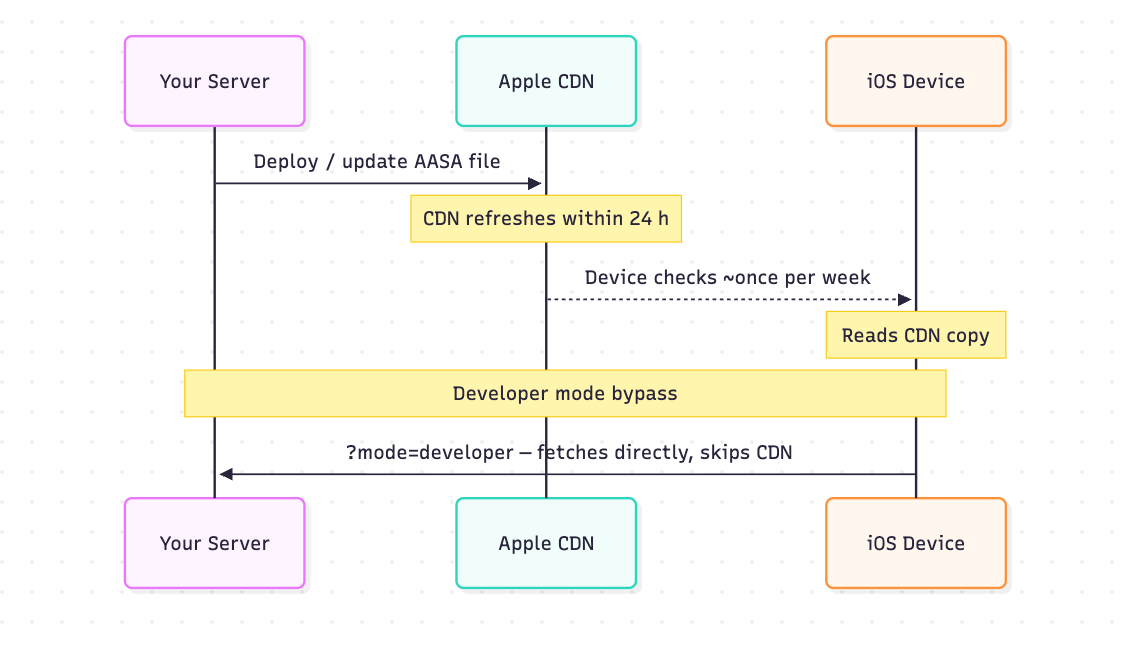
The CDN's copy is readable directly, and it names the URL it fetched:
curl -s -D - -o /dev/null https://app-site-association.cdn-apple.com/a/v1/example.com
The response carries an Apple-From header naming the origin URL and a Cache-Control header whose max-age was 3600 seconds for some hosts and 21600 for others in our sample. If the body does not match what you deployed, the CDN has not refreshed yet. Apple states that there is no direct CDN invalidation option. This endpoint and these headers are observed behavior: Apple does not document them, and they can change without notice.
To see what working setups serve, run this. It is the same check used for the table below:
for h in google.com www.youtube.com www.amazon.com; do
  printf '%-20s %s\n' "$h" \
    "$(curl -sS -o /dev/null -w '%{http_code} %{content_type} %{redirect_url}' \
       https://$h/.well-known/apple-app-site-association)"
done
One machine, one date, twelve hosts, checked 2026-10-11. The content type is what the origin returned; in all twelve cases Apple's CDN returned 200 with a copy of the file.
| Host | /.well-known/ |
/ (legacy root) |
Origin Content-Type | Path Apple's CDN fetched |
|---|---|---|---|---|
| google.com | 404 | 200 | application/json | /apple-app-site-association |
| www.google.com | 404 | 200 | application/json | /apple-app-site-association |
| www.duolingo.com | 404 | 200 | application/octet-stream | /apple-app-site-association |
| www.apple.com | 200 | 404 | application/octet-stream | /.well-known/… |
| www.amazon.com | 200 | 200 | application/octet-stream | /.well-known/… |
| developer.apple.com | 200 | 200 | application/json | /.well-known/… |
| www.youtube.com | 200 | 404 | application/json | /.well-known/… |
| open.spotify.com | 200 | 404 | application/json; charset=utf-8 | /.well-known/… |
| www.netflix.com | 200 | 200 | application/json | /.well-known/… |
| www.nytimes.com | 200 | 404 | application/json | /.well-known/… |
| www.uber.com | 200 | 200 | application/json | /.well-known/… |
| www.airbnb.com | 200 | 301 | application/json | /.well-known/… |
These are HTTP-level checks. Nothing here was tested on a device. Two things follow.
Apple's CDN still fetched the legacy root path for three of the twelve hosts. Google serves its AASA file only at /apple-app-site-association, and the CDN fetched it from there and returned it with a 200. Duolingo does the same. Apple's current documentation names only /.well-known/, and Apple's archived guide allowed both. Use /.well-known/, because that is what Apple documents and what validators check. Whether a device on a current iOS version still honors the root path was not tested here.
Apple's CDN accepted application/octet-stream for all three hosts that served it — www.apple.com, www.amazon.com and www.duolingo.com — checked 2026-10-11. Some pages ranking for this query say the file must be served as application/json or the fetch fails. Apple's own www.apple.com serves it as application/octet-stream, Amazon and Duolingo do the same, and the CDN returned a 200 with the file for all three. In all three of those responses, the CDN also relabeled what it served as application/json regardless of what the origin sent.
Scope that claim carefully. Devices on iOS 14 and later, and on macOS 11 and later, read the CDN's copy, so the origin's header is not in that path. Devices on iOS 13 and earlier, and any device using ?mode=developer, fetch from your server directly, and the header's effect there was not tested. Set application/json: Apple's archived guide names it, and several guides say it is required. The reason to know the CDN is relaxed about it is so you spend your debugging time on the Team ID prefix and the entitlement instead.
The entitlement, without which the file does nothing
The file and the app have to agree. In Xcode, under Signing & Capabilities, add the Associated Domains capability and one entry per host:
applinks:example.com
applinks:www.example.com
The format is <service>:<fully qualified domain>. No https://, no path, no query string, no trailing slash and no port, except for the alternate-mode suffix described below. applinks:example.com:8080 will not open your app. The entitlement reference and Apple's associated domain configuration guide list the services: applinks for Universal Links, webcredentials for shared passwords, activitycontinuation for Handoff, appclips for App Clips and authsrv for web-service authentication.
Three app-side checks:
- The
appIDsvalue in the file and the app signing the build must be the same app. If an agency or a different team signed the build, the App ID prefix in the file has to match that team, so check the prefix on the build you actually shipped rather than the one in your own developer account. - Adding the capability in Xcode is not always enough on its own. If you enable it after the provisioning profile was generated, regenerate the profile and re-sign, or the build may not carry it.
- The entitlement list should stay short. Apple's archived guide recommended no more than about 20 to 30 domains, and each named subdomain needs its own file on its own host.
If a hosted link service generates and serves the file, this is the half you still own. ChottuLink's iOS setup guide walks through the same Xcode steps, and the entitlement entry it asks for is applinks:<your link domain>, for example applinks:yourapp.chottu.link.
Debugging, layer by layer
Universal Links fail without a user-facing error. There is no dialog and no crash. The link opens Safari and you are left guessing which of four layers broke: your server, the file's contents, Apple's CDN, or the entitlement and the device. Work down this table; each row rules out the layer above it.
| Symptom | Check | Expected | Layer |
|---|---|---|---|
| Nothing served at the path Apple fetches | curl -sI <aasa-url> |
200, no Location header |
Server |
| File loads, app never offered | sudo swcutil verify -d <domain> -j ./aasa.json -u <url> |
Pattern "…" matched. |
File contents |
| You fixed the file and nothing changed | curl -s <cdn-url> |
Body matches what you deployed | Apple's CDN |
| Everything above passes | Settings > Developer > Diagnostics | Link is valid for an installed app | Entitlement / device |
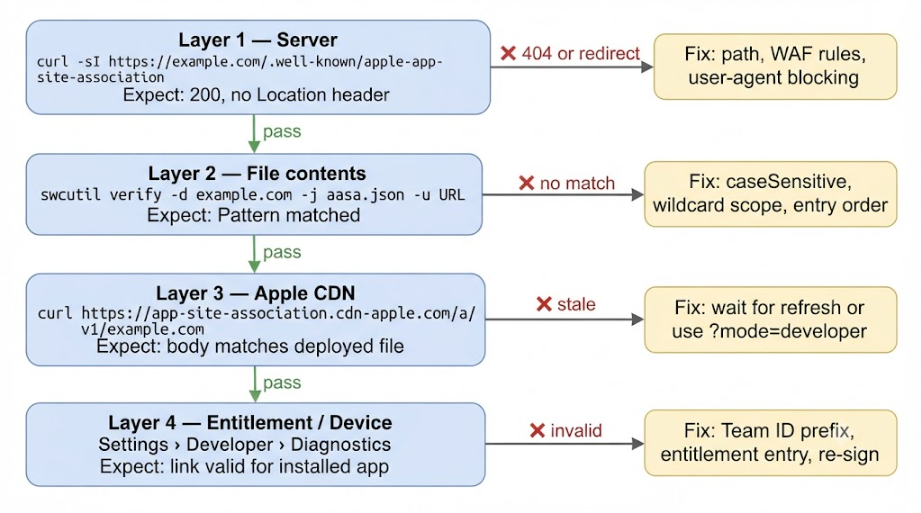
1. Is the file reachable, at the right path, with no redirect?
curl -sI https://example.com/.well-known/apple-app-site-association
You want a 200, no Location header, and a valid certificate. Then confirm the body is real JSON:
curl -s https://example.com/.well-known/apple-app-site-association | jq .
A trailing comma is enough to break it. If your path sits behind a WAF, a bot-protection challenge, basic auth or an IP allowlist, Apple's CDN gets blocked the same way the made-up user agent test does. Allow the /.well-known/ path unconditionally.
2. Do your patterns match what you think? On a Mac, the built-in swcutil does two different jobs. dl downloads the file the way the system would and shows what it holds for the domain; verify checks a file you saved locally against a URL and reports which component matched.
sudo swcutil dl -d example.com
sudo swcutil verify -d example.com -j ./aasa.json -u https://example.com/product/123
swcutil is macOS only. Apple's technote, not a run of ours, shows the output as Pattern "https://example.com/product/123" matched. for a match and blocked match. for an exclusion. If a path you did not exclude comes back blocked, your pattern did not match, and the likely causes are case sensitivity or a wildcard that is broader or narrower than you intended. Without a Mac, the curl check in step 1 plus a JSON validator gets you the same information about hosting and syntax; only the pattern-matching verdict is missing.
Validators, including the popular ones run by deep-linking vendors, check the file's shape and sometimes its pattern matching. None of them can tell you whether Apple's CDN has a current copy or whether your entitlement matches, which are two of the four layers above. Treat a green check as covering step 2 only.
3. What does the CDN have? Read the copy at https://app-site-association.cdn-apple.com/a/v1/example.com and compare it to your deployed file. If it is stale, wait; there is no invalidation.
4. Skip the wait while developing. Append ?mode=developer to the entitlement entry:
applinks:example.com?mode=developer
The system then bypasses the CDN and fetches from your server directly, which also covers a server that is not reachable from the public internet. It requires Developer Mode on the device plus the Associated Domains Development setting in Settings > Developer. Apple's instruction is to remove the query string before submitting to the App Store.
5. Ask the device. With Developer Mode on, Settings > Developer has a Diagnostics screen that takes a full URL and tells you whether it is valid for an installed app.
6. Rule out the false alarms. Three things look like failures and are not:
- Pasting the URL into the address bar. Apple's technote is blunt: entering the URL directly into the address bar never opens the app, because that is direct navigation. Test with a tappable link in Notes.
- Tapping a link on the domain you are already browsing in Safari. iOS treats it as in-page navigation. Put the link on a different subdomain, with its own entitlement entry and its own file.
- Testing an edit against an already-installed build. The device checks about once a week. Deleting and reinstalling forces a fresh fetch, but it comes from Apple's CDN, so a stale CDN copy comes back too. Use
?mode=developerto skip the CDN.
Third-party browsers are not required to support Universal Links, and Apple notes that Safari implements all of the behavior it documents. If links work in Safari and fail elsewhere, the AASA file is not the cause.
One limit on all of the above: when the file is correct and the app still opens the wrong screen, or opens and does nothing, the fault is in the app's URL handling rather than in the file. Apple's guide to handling universal links in your app covers the NSUserActivity contract, including the warning to validate every parameter and discard malformed URLs.
What changes when you leave Firebase Dynamic Links
Firebase Dynamic Links shut down on August 25, 2025. Google's deprecation FAQ states that every link the service served, on custom domains and on page.link subdomains alike, stopped working and that no new links can be created. That FAQ also names the file: migrating means hosting "the necessary domain and asset link verification files on the domain you plan to use for your new links (e.g. assetlinks.json file for App Links, apple-app-site-association file for Universal Links)".
If your links were on a page.link subdomain, there is nothing left to keep resolving. Google controls that domain, the links are dead, and the only real question is whether your app still receives them from anywhere else.
If your links were on a custom domain you still control, that domain is the asset worth keeping. Three things have to line up:
- The file. The domain you are moving to needs its own AASA file, carrying the same
appIDsas before. - The entitlement. The
applinks:entries have to name the new host, which means a new app build. Ship the new entry alongside the old one in the same build so both resolve during the transition, and drop the old entry once your analytics show no traffic arriving on it. - The links already in the wild. Emails, QR codes and printed material point at the old domain. Those taps resolve through that domain's own AASA file, which is independent of the entitlement entry in step 2: as long as the file stays live and correct the links open the app, and when you let it lapse they fall through to the browser. Keep the file in place for as long as those links matter, even after you drop the old entitlement entry.
ChottuLink's Firebase migration page covers the link and SDK side of the cutover. The file-hosting half works the same way: the platform generates and serves the AASA file on your link domain once your bundle ID and Team ID are configured, so you stop maintaining it. That removes a step from the cutover and costs you direct control of a file that has to be exactly right. If you would rather keep the file yourself, hand-hosting is free and the checks above are the whole of the work; it gets awkward when several hosts sit in the entitlement and no one owns the deploy path into .well-known. ChottuLink's pricing page has the plan ceilings if you are weighing the two.
FAQ
What content type should the file be served with? application/json. Apple's archived guide names it, and several guides say it is required. In our sample Apple's CDN did not reject application/octet-stream from Apple, Amazon and Duolingo themselves, so a wrong header is not the first thing to check. Look at the Team ID prefix, the host matrix and the entitlement first.
Do I need a validator? It covers one layer out of four. A validator reads the file's structure and sometimes its pattern matching, so it catches a broken appIDs value or an exclusion in the wrong order. It cannot see what Apple's CDN cached, and it cannot see your entitlement. Use it for step 2 above, then run the curl checks for the rest.
Does this work the same way on Android? No. Android App Links use a separate file, assetlinks.json, requested from https://hostname/.well-known/assetlinks.json and verified through the app's android:autoVerify="true" intent filter rather than an entitlement. See Verify App Links. Nothing in an AASA file affects Android.